


Phantom Blade Zero PC requirements and troubleshooting
Check the official PC requirements, understand the upscaling targets, and work through blurry visuals, uneven performance or Steam installation problems.
What hardware does the PC version require?
The following comes from the official Steam store, checked October 29, 2026. These are the publisher’s requirements and targets, not frame rates measured by GameNavi.
| Component | Minimum | Recommended |
|---|---|---|
| OS | Windows 10 / 11, 64-bit | Windows 10 / 11, 64-bit |
| CPU | Intel i7-8700K / AMD Ryzen 5 3600 | Intel i5-10600K / AMD Ryzen 5 5600X |
| RAM | 16 GB | 16 GB |
| GPU | GTX 1660 6 GB / RX 5500 XT 8 GB | RTX 3060 Ti 8 GB / RX 6700 XT 12 GB |
| Graphics API | DirectX 12 | DirectX 12 |
| Storage | 145 GB, SSD required | 145 GB, SSD required |
| Published target | 1080p, 30 fps, upscaling enabled | 1440p, 60 fps, upscaling enabled |
The final row matters: “1440p at 60” here does not mean every recommended machine renders every frame natively at 1440p. Patches, settings and the particular scene can affect the result.
What should you change first if performance is uneven?
Use this as a diagnostic process, not a universal “best settings” preset:
- Record your resolution, current preset and upscaling mode before changing them.
- Choose a short route you can repeat. Comparing different fights makes it hard to tell whether a change helped.
- Change one setting, repeat the route and check both motion and input response.
- If lowering render resolution helps consistently, compare image quality against the improvement before lowering more settings.
- If the same hitch occurs regardless of resolution, undo unrelated visual changes and check background activity, installation and drivers separately.
We have not benchmarked individual graphics options, so there is no claimed percentage improvement or guaranteed frame rate here.
What if the picture looks soft?
Check the display resolution first, then inspect the upscaling mode. Compare a stationary scene and a moving camera: a setting that looks acceptable in a still image may blur details during motion. Try a higher-quality upscaling mode if your hardware can sustain it, and compare again before increasing sharpening.
The goal is a picture in which you can read attack cues. Once the image and frame pacing are usable, the combat basics explain the difference between a missed parry and holding block.
How do you check for damaged Steam files?
Follow Steam’s verification instructions: restart the computer and Steam, open the game’s Properties → Installed Files → Verify integrity of game files. Let the check finish before trying the same failing sequence again.
Verification can repair installation issues; it does not prove every crash has the same cause. If the problem remains, record your GPU, driver version, settings, error text and the action that triggers it. That is more useful for a support report than changing several unrelated options at once.
Once the game is running consistently, use the Weeping Creek checklist to resume your route, or the weapon guide to plan your next reward.
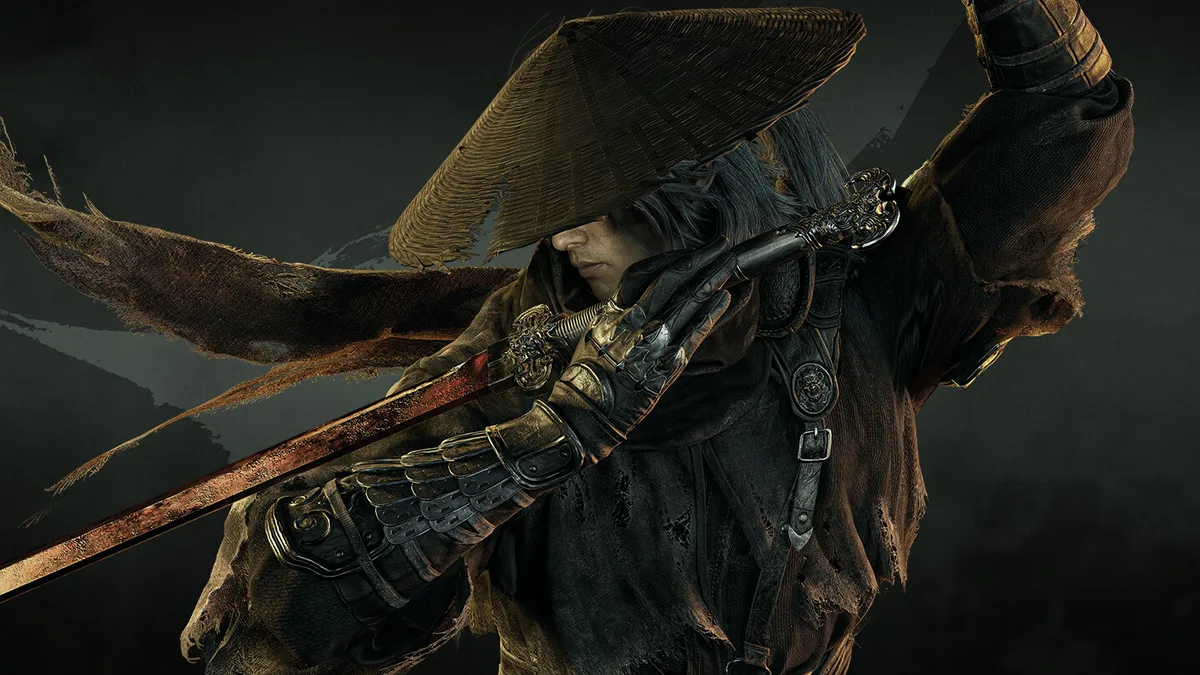
Artwork: official Steam store, © S-GAME.
Related Articles
phantom-blade-zero
Phantom Blade Zero beginner guide: defence, Sha-Chi and weapons
Learn blocking, parrying, red and blue attack cues, weapon switching and where to go first in Phantom Blade Zero on PC and PS5.
phantom-blade-zero
Phantom Blade Zero Hua guide: location, flowers and reward
Find Hua beneath the Sha-Chi Tower and learn how to read her delayed flowers, homing projectiles and follow-up attacks to earn Scarlet Wraithblade.
phantom-blade-zero
Phantom Blade Zero early weapons: where to get them
Find Jagged Steel, Dread Axe and Scarlet Wraithblade in the opening area, and understand what to check before refunding weapon upgrades.
Was this helpful?
Thanks for the feedback!